8 Proven and Effective Ways to Increase Home Internet Speed
A slow internet connection can disrupt your entire digital experience, from video streaming to working from home. With a few practical steps, you can significantly boost your home internet speed.
A slowing internet connection leads to freezing in streaming services, high latency (ping) in online games, and severe productivity loss in remote work. Although many users attribute this situation directly to their service provider, minor mistakes in home network setup or outdated hardware cause only a fraction of the existing capacity to be used.
There are scientifically and technically proven methods you can apply to understand whether you are truly reaching the speed promised by your service provider and to maximize your wireless network performance. Ensuring an uninterrupted connection while watching high-resolution movies in your home with a portable mini projector guide or maintaining your workflow is not as difficult as it seems.
Identifying the Source of Slow Internet: Speed Test and Diagnosis
Before moving on to the solution steps, it is necessary to accurately identify the source of the problem. Follow these steps when testing your internet speed:
- Run Wired and Wireless Tests: Test your speed by connecting your computer directly to the router with an Ethernet cable. Then repeat the same test over Wi-Fi. If you get the promised speed on the wired connection but see a significant drop over Wi-Fi, the issue is entirely related to the wireless network broadcast.
- Close Background Applications: Temporarily disconnect devices performing heavy downloads or uploads on the network during the test.
- Measure at Different Times of Day: Check whether your network slows down during peak hours (usually between 8:00 PM and 11:00 PM).
Optimizing Router and Modem Placement
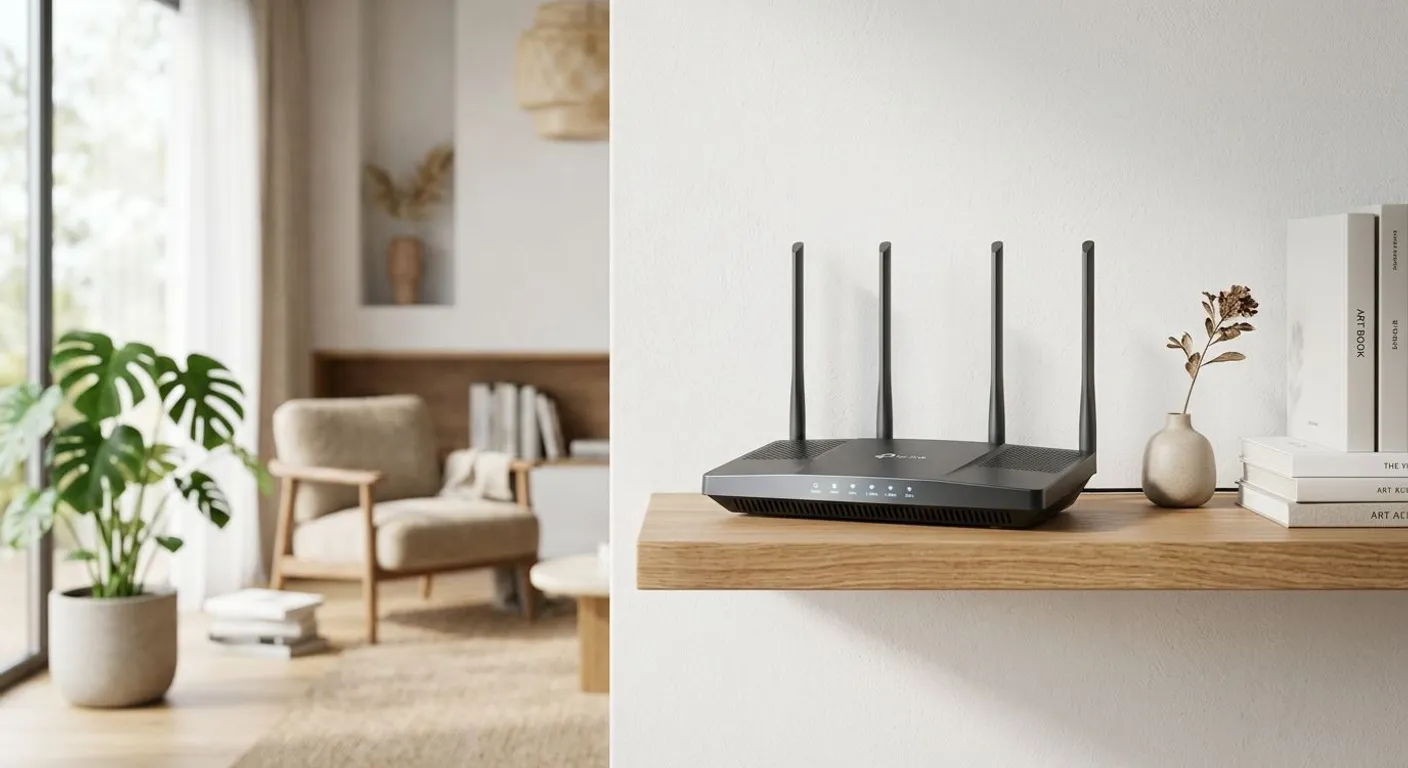
Wireless signals (Wi-Fi) are directly affected by physical obstacles and electromagnetic interference. Placing your modem or router in the wrong spot can reduce signal quality by more than 50%.
- Choose a Central and Elevated Spot: Instead of hiding your modem in a corner or inside a cabinet, place it in the center of the home and at least 1-1.5 meters above the floor.
- Avoid Obstacles: Thick concrete walls, brick partitions, and especially water-filled objects (like aquariums) absorb Wi-Fi signals. Ensure that the front of the router is clear.
- Keep Away from Electronic Devices: Devices such as microwave ovens, cordless phones, Bluetooth speakers, and even smart door locks operate on the 2.4 GHz frequency, causing signal conflicts.
Use 2.4 GHz and 5 GHz Frequency Bands Correctly
The vast majority of modern routers feature Dual-Band support. Knowing the characteristics of these bands allows you to connect the right device to the right frequency:
- 2.4 GHz Band: Has a longer range, but its data transfer speed is lower and it is susceptible to interference from other household appliances.
- 5 GHz Band: Offers much higher data transfer speeds and lower latency. However, its range is shorter compared to 2.4 GHz, and it penetrates walls less effectively.
Connect devices requiring high speeds, such as televisions, gaming consoles, or laptops, to the 5 GHz network when close to the router. Leave devices that do not require high data traffic, such as smart light bulbs or scales, on the 2.4 GHz network.
Change the Wireless Network Channel
Especially in apartment buildings, your neighbors' Wi-Fi networks may be broadcasting on the same channel as yours. This leads to signal clutter and speed drops.
Scan which channels surrounding networks are using with a Wi-Fi analyzer app downloaded to your smartphone. Log into the router interface and change the channel setting from "Auto" to a less congested fixed channel (usually channels 1, 6, or 11 for 2.4 GHz).
Using Ethernet Cables for Critical Devices
No matter how advanced your Wi-Fi technology is, it is difficult to match the stability and speed offered by a wired connection. For remote workers and those building productivity-oriented systems by applying the principle of eliminate repetitive tasks with automation tools, a wired network is the most reliable option.
Choose Cat6 or Cat7 standard Ethernet cables for desktop computers, gaming consoles, or smart TVs streaming in 4K. This lightens the load on your wireless network and leaves more bandwidth for other mobile devices.
Hardware Upgrade: Wi-Fi Mesh Systems and Wi-Fi 6
If your house is large or consists of multiple floors, a single router is insufficient to deliver quality signals to all areas. Since traditional range extenders (repeaters) cut speed in half, switching to modern Mesh Wi-Fi systems is the most sensible investment.
Mesh systems consist of units placed at different points in your home that communicate seamlessly with each other under a single network name. Also, when buying a new router, ensure it supports the Wi-Fi 6 (802.11ax) standard. Wi-Fi 6 manages data traffic much more effectively in homes where dozens of devices connect to the network simultaneously.
Software Optimizations: DNS and QoS Settings
Sometimes the problem is server response time (DNS response time) rather than connection speed. If your service provider's default DNS servers are slow, you can switch to fast and reliable global DNS addresses like Cloudflare (1.1.1.1) or Google (8.8.8.8) via your router interface.
In addition, enable the QoS (Quality of Service) feature in the router interface to determine priority traffic. For example, you can prioritize video calls during work hours and video streaming in the evening.
Comparison of Internet Speed Acceleration Methods
| Method | Cost | Difficulty of Implementation | Expected Impact / Speed Gain |
|---|---|---|---|
| Router Placement | Free | Very Easy | 30%-50% increase in signal quality |
| Switching to 5 GHz Band | Free | Easy | 2-3x speed increase at close range |
| Changing Wi-Fi Channel | Free | Medium | Reduces interference, prevents drops |
| Using Ethernet (Cat6/Cat7) | Low | Easy | Lossless full package speed |
| Wi-Fi Mesh System | Medium - High | Easy | Seamless and uniform speed throughout the house |
| DNS and QoS Optimization | Free | Medium | Improvement in response times (ping) |
Security Measures and Preventing Unauthorized Network Use
Another reason behind your network slowing down could be third parties who guessed your password or accessed your Wi-Fi network without permission. To ensure your network security, use WPA3 or at least WPA2-AES encryption protocol. Set a complex Wi-Fi password and be sure to change the default router admin panel password.
Resources
Frequently Asked Questions
Should I choose a range extender (repeater) or a Mesh system?
Range extenders receive the existing Wi-Fi signal and re-broadcast it, cutting the speed in half. Mesh systems, on the other hand, work fully integrated with each other to provide wide coverage without speed loss, making Mesh systems far superior.
Does changing the Wi-Fi channel really affect internet speed?
Yes. Especially in apartment buildings with dense neighboring networks, signals on the same channel overlap. Switching to an empty or less-used channel reduces interference and increases speed.
What is the difference between Cat6 and Cat7 when choosing an Ethernet cable?
Cat6 cables support speeds from 1 Gbps to 10 Gbps over short distances and are more than sufficient for home use. Cat7 offers a higher frequency bandwidth and extra shielding against interference, making it ideal for professional data transfers.
Does changing DNS increase internet speed?
Changing DNS does not directly increase download speeds, but it speeds up the browsing experience by improving website load times and connection response times (ping).
This content was researched and prepared by the İlgi Alanları editorial team and reviewed for accuracy and readability before publication. Information on health, finance and investment topics is general in nature and does not replace professional advice.